
Edit Template

How to Access PharmaSpirit's Materials

Your FileOpen authentication to the book is:

Limit of 2 Device Access

Username:
Password: Your ID Number

Watch the Video

How to Access your FileOpen Materials
play-rounded-fill

How to Access your FileOpen Materials

Full PDF instructions

  • How to Install and Use FileOpen for Windows
    Instructions
  • How to Install and Use FileOpen for Apple
    Instructions

Checklist - Common Do's and Don'ts

  • Make sure latest Adobe Reader is installed to avoid compatibility issues

  • Make Sure Install Adobe First

    FileOpen is a plugin/extension that is added to Adobe. Make sure to install Adobe before FileOpen

  • Make Sure to Complete FileOpen Installation

    Make sure to complete your installation of FileOpen. You must see the Finish message.

  • Make Sure NOT open from the browser

    Make sure to open the pdf document from your device's download file. Right Click and open with Adobe.

  • Don't Confuse your Course Portal Password with the FileOpen Password

    The password you used to sign into the course portal is NOT your password for the FileOpen Authentication.

Troubleshooting Tips

Common Problems when accessing the Materials with FileOpen

Click on the picture to enlarge

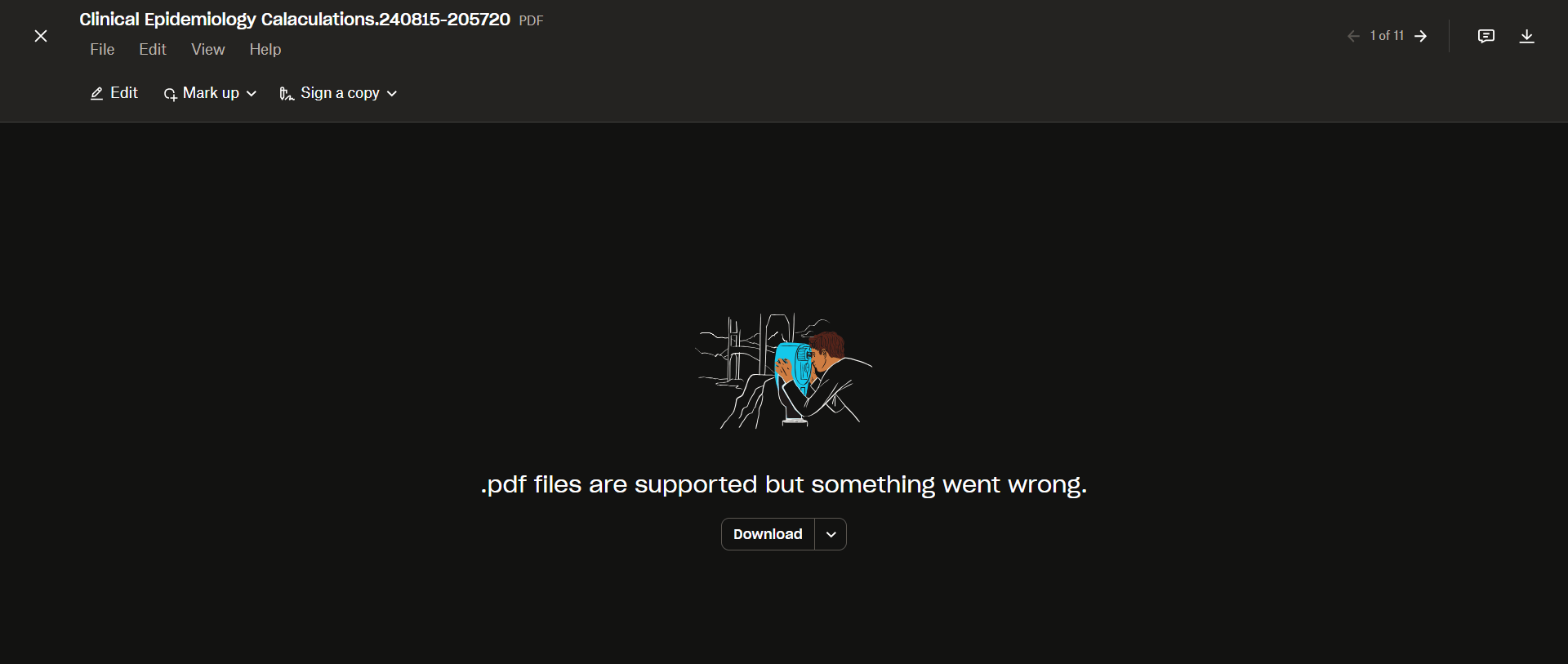
.pdf files are supported but something went wrong

Problem: I get this picture when i try to open the downloaded file.
Solution: Open using Adobe. Make sure to open your download folder on your device, right click on the file and open with adobe reader.
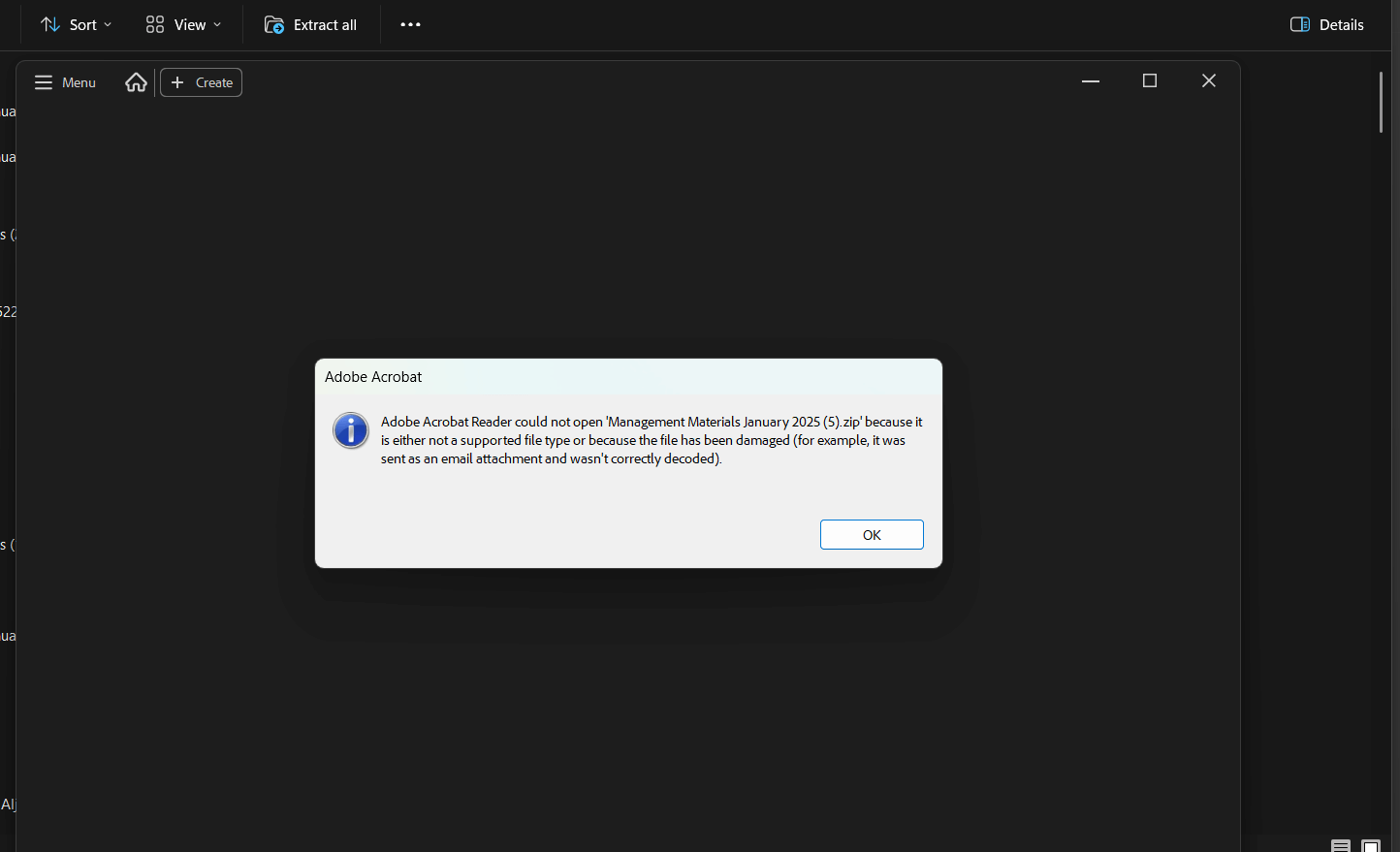
Adobe Acrobat Reader could now open "Management Materials.zip"

Problem:I follow the steps and try to open the file from the download folder but it says the file is not supported
Solution: Adobe and FileOpen won't open the zip folder. It only opens one file at a time.
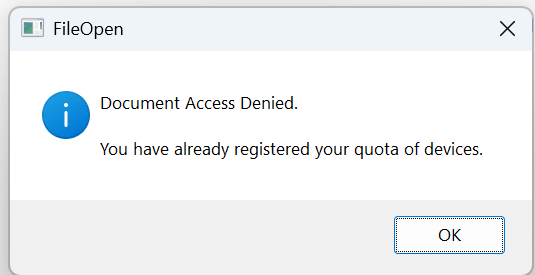
You have already registered your quota of devices.

Problem:You are using more than 2 devices to access the materials
Solution: Please use one of the 2 devices you downloaded the materials to. Your account has already recorded the first 2 devices you downloaded the files to.

Sorry, that username/password combination was invalid

Problem:You keep getting this username password message.
Solution: Check to see if you are entering the right username and password. Your username and password are on the My Profile in the course portal or the email sent by Dr. Usama when you registered. If its correct, email us at info@pharmaspirit.com

This happens when the FileOpen plugin is not installed or is not detected by Adobe Reader.

 **Solution:**

  • Ensure the FileOpen Client app is installed. You can check if it is installed by going to:  Adobe Reader > Help > About Third-Party Plug-ins.

If it’s not installed, download and install the latest version from FileOpen

Restart Adobe Reader after installation.

  • Ensure the document is opened in Adobe Reader, not in a browser or another PDF viewer.

If you installed FileOpen but the PDF does not open, possible reasons include outdated software or incorrect file associations.

**Solution:**

  • Update Adobe Acrobat Reader DC to the latest version.
  •  Ensure the PDF is being opened in Adobe Reader, not in a browser or another PDF viewer.
  • On Mac, open Adobe Reader > Preferences > Security (Enhanced) and allow FileOpen

Most browsers have built-in PDF viewers that do not support FileOpen encryption.

**Solution:**

  • After you download the PDF, make sure to open it directly in Adobe Reader instead of clicking to open it in the browser.
  • Go to your File Explorer on your device and open with Adobe.
  • To avoid ODFs from opening in the browser automatically, you can change the browser’s PDF settings to always download files instead of opening them in the browser.

Most likely you received a WhatsApp message or email about new updates to the materials.  The document you have is no longer available and this is why you can’t open it.

**Solution:**

Go back to your course portal materials section and download the chapter you wish to view. Once you download it, open it through the Adobe Reader.

Printing Tips

  • Make sure the printer that is connected to the device with the FileOpen access is the default printer

  • If Print Button is not showing or doesn't work

    If you print button is grey and not active this means you have exceeded your print limit for the file. Please contact IT at info@pharmaspirit.com

Only for Macbook

  • Make sure FileOpen for printing is enabled

    Open Adobe Acrobat/Reader. Go to Preferences > Security (Enhanced). Ensure the following: "Enable Enhanced Security" is unchecked. Add the document's file location to the Privileged Locations list. Restart Adobe Acrobat/Reader and try printing again.

  • If it is spooling while printing adjust Print Settings on MacOS

    Open the PDF in Adobe Acrobat Reader. Go to File > Print or press Command + P. In the Print dialog box, click the Advanced button (usually near the bottom-left corner). Check the box for Print As Image. Set the DPI to 300 for faster printing. Click OK and then print the document.

  • Avoid using the Airprint when printing the PDF. Airprint relies on Apple's built-in printing system, which may not fully support FileOpen

    Check if you are using Airprint Go to System Settings >Printers >Scanners and see if your printer is listed as AirPrint.
    If it is, you may need to install the manufacturer's driver instead.

    • Download & Install the Printer Driver
    • Go to System Settings> Printers > Scanners.
    • Click + (Add Printer) and select your printer.
    • Choose the driver you installed instead of AirPrint.
    • Click Add and set it as the default printer.
    • Restart & Try Printing Again
    • Close and reopen Adobe Acrobat Reader.
    Try printing the PDF again using the newly installed driver.

    This method ensures full compatibility with Adobe Acrobat Reader and FileOpen-protected PDFs, reducing printing errors that may occur with AirPrint.